Editor Title Bar Buttons
Table of Contents
- Overview
- Supported File Types
- Run Button (▶)
- Run with Arguments Button (▷)
- Run Guard Integration
- Configuration
- Limitations
- Related
New in v1.11.0 Run and Run with Arguments buttons now appear in the editor title bar when a runnable task file is open.
Overview
When you open a shell script or GitHub Actions workflow file in the editor, Workspace Tasks adds Run (▶) and Run with Arguments (▷) buttons to the editor title bar (top-right corner of the editor pane). These buttons let you execute the task associated with the open file without switching to the task tree.
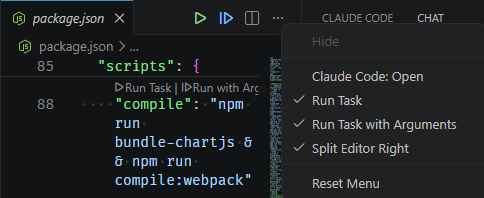
Buttons only appear when:
- The active file corresponds to at least one discovered task of a supported type (
shellorgithub-actions) - The workspace is trusted
- The respective button is enabled in
workspaceTasks.task.actionBarsettings
Supported File Types
| Task Type | Example Files |
|---|---|
shell | deploy.sh, build.sh, any shell script discovered by the Shell Script provider |
github-actions | .github/workflows/ci.yml, .github/workflows/release.yaml |
Run Button (▶)
Click the Run button (▶) in the editor title bar to execute the task for the currently open file.
- If the file maps to exactly one task, it runs immediately (after any Run Guard confirmation).
- If the file maps to multiple tasks (e.g. a GitHub Actions workflow with several discovered entries), a QuickPick list appears so you can select which task to run.
Run with Arguments Button (▷)
Click the Run with Arguments button (▷) to execute the task with custom arguments.
- If the file maps to multiple tasks, a QuickPick list appears first to select the task
- Any Run Guard confirmation is shown next
- An input box prompts for the arguments to pass to the task command
- Press Enter to run, or Escape to cancel
Run Guard Integration
Both buttons fully respect the Run Guard feature. If a task is guarded (via manual toggle, definition flag, or pattern), a confirmation dialog appears before the task executes — identical to running from the task tree.
Configuration
The editor title bar buttons share the same on/off toggle as the task tree action bar buttons via the workspaceTasks.task.actionBar setting:
| Property | Controls |
|---|---|
run | Show/hide the Run button in both the task tree and the editor title bar |
runWithArgs | Show/hide the Run with Arguments button in both the task tree and the editor title bar |
Example — disable Run with Arguments in both locations:
{
  "workspaceTasks.task.actionBar": {
    "runWithArgs": false
  }
}
Limitations
- Shell scripts only: the buttons appear for files discovered by the Shell Script provider. A
.shfile that is not in any configured shell-script search path will not trigger the buttons even if open in the editor. - Workspace Trust: buttons are hidden in untrusted workspaces. No task discovery runs in untrusted workspaces, so no buttons can appear.
- Stop button not included: stopping a running task is not available from the editor title bar. Use the task tree or the integrated terminal to stop a running task.
- Cache reactivity: if you open a file before task discovery has completed (e.g., immediately on VS Code startup), the buttons may appear with a short delay after the cache is populated. The buttons update automatically on the next cache refresh.