Task Display & Interaction Settings
Table of Contents
- workspaceTasks.tasks.sortingEnabled
- workspaceTasks.task.singleClickAction
- workspaceTasks.task.doubleClickAction
- workspaceTasks.task.statusResetDelay
- workspaceTasks.task.iconType
- workspaceTasks.task.iconTypeCustom
- workspaceTasks.task.actionBar
- workspaceTasks.recentTasks.maxItems
- workspaceTasks.codeLens.enabled
- workspaceTasks.codeLens.actionBar
- Related
workspaceTasks.tasks.sortingEnabled
v1.7.0: Added
workspaceTasks.tasks.sortingEnabledsetting to control whether tasks are sorted alphabetically or displayed in definition order.
| Type: | boolean |
| Default: | true |
Controls whether tasks are sorted alphabetically within their groups and type buckets. When enabled (the default), tasks are sorted alphabetically by label at every level of the tree. When disabled, tasks are displayed in the order they are defined in their source file (e.g. package.json, Makefile, Taskfile.yml) or discovered by the provider.
Disabling this setting is useful when the definition order carries semantic meaning — for example, a Makefile where the first target is the default build target, or a package.json script list that is kept in workflow order.
This setting affects task items only. Special groups such as Favorites, Recent Tasks, and Compound Tasks are always sorted by their own rules regardless of this setting.
Example — preserve definition order:
{
  "workspaceTasks.tasks.sortingEnabled": false
}
Example — alphabetical order (default):
{
  "workspaceTasks.tasks.sortingEnabled": true
}
workspaceTasks.task.singleClickAction
| Type: | string |
| Default: | "open" |
| Options: | "run", "runWithArgs", "open", "none" |
The action performed when a task item in the tree is single-clicked.
- run - Run the task immediately
- runWithArgs - Prompt for arguments and then run the task
- open - Open the source file that defines the task
- none - No action on single click
Example:
{
  "workspaceTasks.task.singleClickAction": "open"
}

workspaceTasks.task.doubleClickAction
| Type: | string |
| Default: | "run" |
| Options: | "run", "runWithArgs", "open", "none" |
The action performed when a task item in the tree is double-clicked.
- run - Run the task immediately
- runWithArgs - Prompt for arguments and then run the task
- open - Open the source file that defines the task
- none - No action on double click
Example:
{
  "workspaceTasks.task.doubleClickAction": "run"
}

workspaceTasks.task.statusResetDelay
| Type: | number |
| Default: | 500 |
The time in milliseconds to display a task’s completion status indicator (✔ or ✖) in the tree view before resetting it to the idle state. Set to 0 to keep the status until the next action.
Example:
{
  "workspaceTasks.task.statusResetDelay": 500
}

workspaceTasks.task.iconType
| Type: | string |
| Default: | "type" |
| Options: | "type", "file", "gear", "run", "custom" |
The icon style to display next to each task in the tree view.
- type - The task-type icon representing the technology (npm, gradle, etc.)
- file - The VS Code file icon for the task’s source file
- gear - A generic gear/settings icon
- run - A generic play/run icon
- custom - A user-defined icon (see
workspaceTasks.task.iconTypeCustom)
Example:
{
  "workspaceTasks.task.iconType": "run"
}

workspaceTasks.task.iconTypeCustom
| Type: | string |
| Default: | "" |
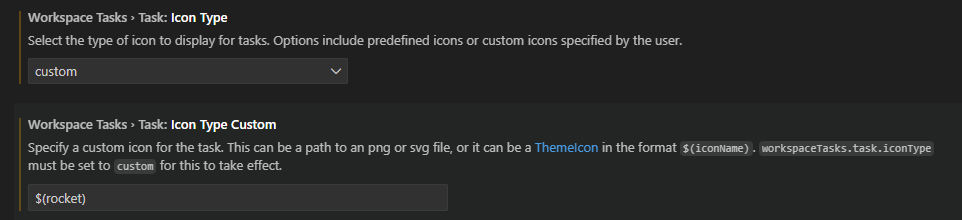
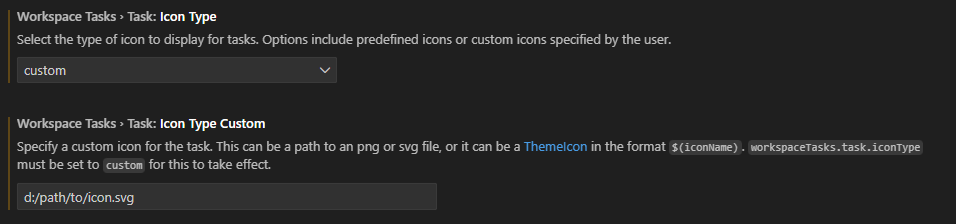
A custom icon to display for tasks when workspaceTasks.task.iconType is set to "custom". This can be:
- A ThemeIcon identifier in the format
$(iconName) - A relative path to a
.pngor.svgfile within the workspace
Example — built-in ThemeIcon:
{
  "workspaceTasks.task.iconType": "custom",
  "workspaceTasks.task.iconTypeCustom": "$(rocket)"
}
Example — workspace file path:
{
  "workspaceTasks.task.iconType": "custom",
  "workspaceTasks.task.iconTypeCustom": ".vscode/icons/task-icon.svg"
}
workspaceTasks.task.actionBar
| Type: | object |
| Default: | see below |
{
  "run": true,
  "runWithArgs": true,
  "openFile": true,
  "favorite": true,
  "queue": true,
  "hide": false,
  "unhide": true
}
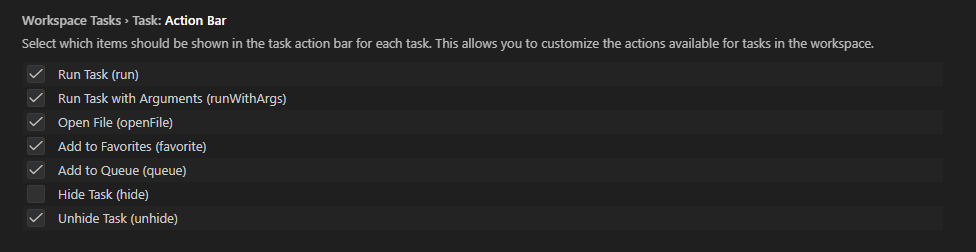
Controls which buttons are shown in the inline action bar for each task in the tree view.
The
runandrunWithArgsflags also control the editor title bar buttons that appear when a shell script or GitHub Actions workflow file is open in the editor. See Editor Title Bar Buttons for details.
Properties
- run - Run Task
- runWithArgs - Run Task with Arguments
- openFile - Open the task’s source file
- favorite - Add to / remove from Favorites
- queue - Add to a Compound Task
- hide - Hide the task
- unhide - Unhide the task
Example:
{
  "workspaceTasks.task.actionBar": {
    "run": true,
    "runWithArgs": false,
    "openFile": true,
    "favorite": true,
    "queue": false,
    "hide": false,
    "unhide": true
  }
}
workspaceTasks.recentTasks.maxItems
| Type: | number |
| Default: | 20 |
| Minimum: | 0 |
The maximum number of recently executed tasks to track and display in the Recent Tasks group. Setting this to 0 effectively disables recent-task tracking.
Example:
{
  "workspaceTasks.recentTasks.maxItems": 10
}

workspaceTasks.codeLens.enabled
| Type: | boolean |
| Default: | true |
| Scope: | Window |
When enabled, shows inline CodeLens action buttons directly above each task definition in its source file (e.g. package.json, Taskfile.yml, .github/workflows/*.yml).
The individual buttons shown in each CodeLens row are controlled by
workspaceTasks.codeLens.actionBar. SetcodeLens.enabledtofalseto remove all lenses entirely.
Example — disable CodeLens actions:
{
  "workspaceTasks.codeLens.enabled": false
}
workspaceTasks.codeLens.actionBar
| Type: | object |
| Default: | see below |
{
  "run": true,
  "runWithArgs": true,
  "favorite": true,
  "queue": true
}
Controls which buttons are shown in the inline codelens action bar for each task.
Properties
- run - Run Task
- runWithArgs - Run Task with Arguments
- favorite - Add to / remove from Favorites
- queue - Add to a Compound Task
Example:
{
  "workspaceTasks.codeLens.actionBar": {
    "run": true,
    "runWithArgs": false,
    "favorite": true,
    "queue": false
  }
}