Running Tasks
Table of Contents
- Running a Task
- Running a Task with Arguments
- Stopping a Task
- Taskfile-Specific Features
- Opening the Source File
- Adding a Task to Favorites
- Adding a Task to a Compound Task
Running a Task
There are several ways to run a task from the Workspace Tasks view.
Action Bar
Each task row displays an action bar when hovered. Click the Run button (▶️) to execute the task immediately.

Double-Click
Double-clicking a task in the tree runs it immediately using the configured double-click action (default: run). You can change this behavior via the workspaceTasks.task.doubleClickAction setting.
Right-Click Context Menu
Right-click any task and select Run Task from the context menu.
Command Palette
Open the Command Palette (Ctrl+Shift+P / Cmd+Shift+P) and run Workspace Tasks: Run Task.
Editor Title Bar
When a file with one or more registered tasks is open in the editor, Run (▶) and Run with Arguments (▷) buttons appear in the editor title bar. This works for all discovered task file types — shell scripts, GitHub Actions workflows, package.json, Makefile, Taskfile.yml, and any other file type the extension recognizes.
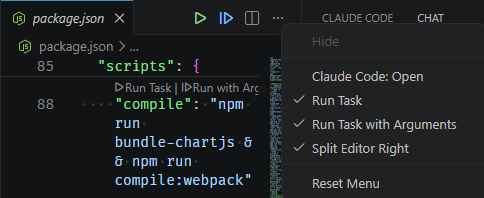
- Single task — the task runs immediately without a prompt.
- Multiple tasks — a QuickPick appears listing all runnable, non-hidden tasks for that file. The placeholder shows the filename (e.g. Select a task to run from package.json) so you always know which file the tasks belong to.
Hidden tasks are excluded from the QuickPick and do not count toward the button appearing. See Editor Title Bar Buttons for full details.
Running a Task with Arguments
To pass additional arguments to a task at runtime:
- Hover over the task to reveal the action bar
-
Click the Run with Args button (▶︎) in the action bar
— or —
Right-click the task and select Run Task with Args
- An input box appears — type the arguments you want to pass to the task command
- Press Enter to run (or Escape to cancel)
For most tasks, arguments are appended to the command when it executes. For custom workspace-task commands that include ${args}, the typed value is injected at that exact position (and for every ${args} occurrence).
Security — arguments are passed as separate tokens, not shell code. Each argument you type is passed to the shell as a discrete quoted value. Shell metacharacters such as ;, &&, |, and $(...) typed in the argument box are treated as literal strings, not as shell operators. For example, typing ; rm -rf / simply passes ;, rm, -rf, and / as individual command arguments — they are never executed as shell commands.
Example:
{
   "label": "Run Container",
   "type": "workspace",
   "command": "docker run ${args} ghcr.io/example/app:latest"
}
If you run with args --rm -it, the executed command becomes:
docker run --rm -it ghcr.io/example/app:latest
If ${args} is not present, the value is appended to the end (backward-compatible behavior). Pressing Escape without entering anything cancels the operation.
${args} placeholder — embedded use
You can use ${args} as a standalone token in the command string (as shown above), or as an embedded substring inside an argument value:
{ "command": "my-tool --name=${args} --output=./dist" }
When ${args} appears embedded inside a token (e.g. --name=${args}), the entire user-supplied value is treated as a single argument. Spaces in the user’s input are kept as part of that argument rather than splitting into multiple tokens.
Breaking change for commands with shell operators in the base command string. Commands that use shell operators (&&, ||, |, ;) directly in the command field of a workspace task are now treated as literal argument tokens, not as shell control operators. For example, a command like "npm run build && npm run test" will no longer chain two commands — it will pass && as a literal argument to npm. To chain commands, use VSCode’s compound tasks (dependsOn) or a wrapper shell script instead.
The workspaceTasks.task.doubleClickAction or workspaceTasks.task.singleClickAction settings can be set to runWithArgs to make clicking a task always prompt for arguments.
Guided Argument Input
For Python (.py) and PowerShell (.ps1) scripts, the extension can parse the script’s parameter declarations and present each parameter as a dedicated prompt instead of a single raw text input. Enable this feature via:
"workspaceTasks.task.guidedArgInput": true
When enabled, running a supported script with Run with Args shows:
- A QuickPick for parameters with a fixed set of choices (
choices=[...]/[ValidateSet]) - A Yes / No QuickPick for boolean flags (
action='store_true'/[switch]) - A loop of input boxes for multi-value parameters (
nargs,action='append') - A standard input box for everything else
- A final additional arguments prompt that accepts one
--flag=valueentry at a time; submit an empty value to finish
If the extension cannot detect parameters (e.g. no import argparse, untrusted workspace), it falls back to the additional-arguments free-form prompt automatically.
guidedArgInput defaults to true. If disabled, script tasks use the additional-arguments free-form prompt. This setting does not affect non-script tasks.
See the detailed per-language guides:
Stopping a Task
While a task is running, the Run button in the action bar is replaced by a Stop button (⏹).
Graceful Stop
Click the Stop button (⏹) once to send a graceful stop signal (SIGINT, equivalent to Ctrl+C) to the running process. The task gets up to 5 seconds to shut down cleanly. After that, it is force-terminated automatically if still running.
Force Stop
If the task does not respond to the graceful stop within the timeout, or if you need to terminate it immediately:
- Click the Stop button (⏹) a second time while the graceful stop is in progress
This force-terminates the process immediately and closes the task execution.
You can also send Ctrl+C directly in the integrated terminal to interrupt the task process.
Taskfile-Specific Features
Wildcard Tasks
Taskfile supports task names containing * wildcards (e.g. build:*). When you run a wildcard task the extension prompts you to fill in each wildcard segment before execution — no manual editing required.
See Wildcard Tasks for full details.
CLI_ARGS Forwarding
When a Taskfile task uses the `` template variable, the extension automatically inserts -- before any extra arguments you supply via Run with Args. This ensures the arguments reach the task correctly.
See CLI_ARGS Forwarding for full details.
Required Variables Guided Arguments
When a Taskfile task declares requires.vars, Workspace Tasks provides a Taskfile-specific guided argument flow that collects those values before execution.
- Run Task prompts only for required variables that do not already have a predefined value in task-level or file-level
vars. - Run with Args always prompts for all required variables. If a variable is already predefined in
vars, that value is used as the default in the prompt.
Prompt behavior by variable type:
- Variables with
enumuse a pick list. - Variables without
enumuse an input box.
Collected values are passed to task as VAR='value' assignments before any -- separator used for `` forwarding.
This Taskfile guided argument flow is controlled by the
workspaceTasks.task.guidedArgInputsetting (default:true). If the setting isfalse, the required-variables prompt is skipped and the task runs without collecting variable values. The same setting also controls guided parameter input for Python and PowerShell script tasks.
Opening the Source File
Every task has an associated source file (e.g., package.json, Makefile, Taskfile.yml). You can navigate directly to where the task is defined:
- Hover over the task to reveal the action bar
-
Click the Open File button (
$(file-code)) in the action bar— or —
Right-click the task and select Open File at Line
— or —
Single-click the task (when
workspaceTasks.task.singleClickActionis set toopen, which is the default)
The file opens in the editor, scrolled to and with the cursor placed at the exact line where the task is defined.
Adding a Task to Favorites
Favorites pin frequently used tasks to the top of the task tree for quick access.
- Hover over the task to reveal the action bar
-
Click the star icon (☆) in the action bar
— or —
Right-click the task and select Add to Favorites
The task appears in the Favorites group at the top of the task tree. The star icon fills in (⭐) to indicate the task is favorited.
To remove a task from favorites, click the filled star (⭐) in the action bar, or right-click and select Remove from Favorites.
See Favorites for more details on managing and configuring favorites.
Adding a Task to a Compound Task
Compound Tasks let you run multiple tasks in sequence.
- Hover over the task to reveal the action bar
-
Click the compound task icon (
$(list-unordered)) in the action bar— or —
Right-click the task and select Add to Compound Task
- If no compound tasks exist, you are prompted to enter a name for a new compound task
- If compound tasks already exist, select an existing compound task from the list or choose New Compound Task… to create one
The task is added to the selected compound task group and appears in the Compound Tasks section of the task tree.
See Compound Tasks for details on running, reordering, and managing compound tasks.