Features
Workspace Tasks provides a rich set of features to help you discover, organize, and execute tasks across your development workflow.
As of v1.5.0, Queues have been renamed to Compound Tasks to align with Visual Studio Code’s terminology. The main feature remains the same, but now they can be executed sequentially or in parallel. You may see “Compound Task” in some UI elements and documentation for clarity during the transition. VSCode Compound Tasks are referenced as “VSCode Compound Tasks” to differentiate from Workspace Tasks’ Queues.
Overview
| Feature | Description |
|---|---|
| Running Tasks | Run tasks, pass arguments, stop execution, and navigate to source files |
| Editor Title Bar Buttons | Run shell scripts and GitHub Actions workflows directly from the editor title bar |
| Favorites & Recent Tasks | Pin frequently used tasks and track recently run tasks |
| Compound Tasks | Create and run sequences of tasks in order |
| VSCode Compound Tasks | Wire multiple tasks together with dependsOn for sequential or parallel execution |
| Hide Tasks & Groups | Declutter your task view by hiding unused tasks |
| Task History | Track and review all task executions with status and timing |
| Environment Variables & Secrets | Inject env vars and secrets into any task with fourteen-layer precedence; manage SecretStorage keys from the tree view |
| Task Duration Estimates | See estimated run time while a task executes, in the hover tooltip before launch, and as a Typical Duration row in the Statistics tab |
| Run Guard | Require confirmation before running destructive or sensitive tasks; guard via manual toggle, definition flag, or label pattern |
| Language Model Tools | Use #wTasks and #runWTask in GitHub Copilot chat to discover and run tasks without leaving the chat interface |
View Placement and Layout
Workspace Tasks supports flexible view placement:
- Dedicated Sidebar — Access tasks from the Activity Bar for a dedicated panel
-
Explorer Integration — View tasks alongside your files in the Explorer panel
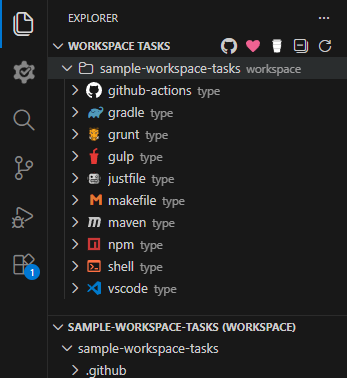
- Dockable Window — Drag the Explorer view to any location (left, right, bottom panel, or floating)
- Synchronized State — Both views share the same state; actions in one view reflect in the other
Execution and Navigation
Running Tasks
- Single Click — Click the play button (▶️) to run immediately
- Terminal Output — Task output appears in the integrated terminal with status indicators
- Multiple Tasks — Run multiple tasks simultaneously in separate terminals
- Command Palette — Use
Ctrl+Shift+P/Cmd+Shift+Pto search and run tasks by name
Stopping & Restarting Tasks
- Stop Button — Click the stop button (⏹) next to running tasks to terminate execution
- Restart Button — Click the restart button (🔄️) to stop the current task and run it again
- Status Tracking — Visual indicators show running/success/failure states
Navigation
- Quick File Access — Click tasks to jump to their definition in the source file
- Line Precision — Opens files at the exact line where tasks are defined
- File Path Display — Hover over tasks to see full paths and commands
- Hierarchical Browsing — Tree structure shows workspace → task type → individual tasks
Refresh and Collapse Controls
- Refresh Tasks — Manually refresh to pick up changes without reloading Visual Studio Code
- Collapse/Expand — Use the collapse all button (⊟) to toggle view states:
- First click: Collapse task type groups
- Second click: Collapse workspace folders
- Third click: Expand everything
Table of contents
- ▶️ Running Tasks
- ⭐ Favorites
- 📊 Compound Tasks
- 🔗 VSCode Compound Tasks
- 🕜 Recent Tasks
- 🙈 Hide Tasks & Groups
- 📚 Task History
- 🪄 Task Filtering
- 🚫 Ignoring Tasks
- 🔍 Inline CodeLens Actions
- 🛡️ Run Guard
- 🛃 Workspace Tasks
- 🤖 Language Model Tools
- 📄 Editor Title Bar Buttons
- 🔐 Environment Variables
- ⏱️ Task Duration Estimates
- 🏁 Comparison Matrix