Favorites
Table of Contents
- How to Favorite a Task
- How to Remove a Task from Favorites
- Features
- Perfect For
- Recent Tasks
- Next Steps
Pin your most frequently used tasks for instant access. Favorites appear in a dedicated section at the top of the task tree, making your common operations just one click away.
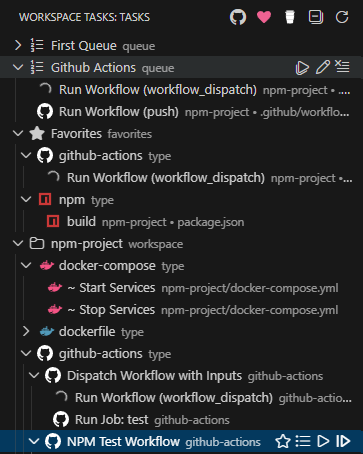
How to Favorite a Task
- Hover over any task in the tree to reveal the action bar
- Click the star icon (☆) in the action bar — or right-click the task and select Add to Favorites
- The task appears immediately in the Favorites group at the top of the tree
- The star icon fills in (⭐) at both the original task location and in the Favorites group
How to Remove a Task from Favorites
- Click the filled star (⭐) in the action bar — or right-click the task and select Remove from Favorites
- The task is removed from the Favorites group but remains in its original location in the tree
Features
- Quick Access — All favorites in one place, organized by task type
- Persistent — Saved automatically across Visual Studio Code sessions
- Workspace-Specific — Each workspace maintains its own favorites list
- Visual Indicators — Star icons show in both the favorites section and original location
- Context Display — Tasks show their workspace folder name in multi-root workspaces
- Settings Sync — Favorites automatically sync across all your machines when VS Code Settings Sync is enabled
Perfect For
- Build, test, and deploy tasks you use daily
- Development scripts you run frequently
- Tasks from different workspace folders you need regularly
Recent Tasks
As you run tasks, they are tracked in a dedicated Recent Tasks section at the top of the task tree. This lets you quickly re-run the tasks you’ve been working with most recently.
Configuration
workspaceTasks.recentTasks.maxItems
| Type: | number |
| Default: | 20 |
| Minimum: | 0 |
The maximum number of task items to track in the Recent Tasks group. Once the limit is reached, the oldest tasks are dropped from the list. Set to 0 to disable Recent Tasks entirely.
{
  "workspaceTasks.recentTasks.maxItems": 20
}

workspaceTasks.groups.recentTasks.enabled
| Type: | boolean |
| Default: | false |
When enabled, recent tasks will be grouped by task type in the same way as the main task tree.
{
  "workspaceTasks.groups.recentTasks.enabled": true
}

Next Steps
- Configuration — Full settings reference
- Compound Tasks — Group tasks into runnable sequences